Navigating the CD2030 Datasuite Interface
On this page you will find instructions on the various screens/views and tips for navigating the CD2030 Datasuite as a first time user.
After downloading and installing the CD2030 Datasuite, you will need to navigate through the following pages:
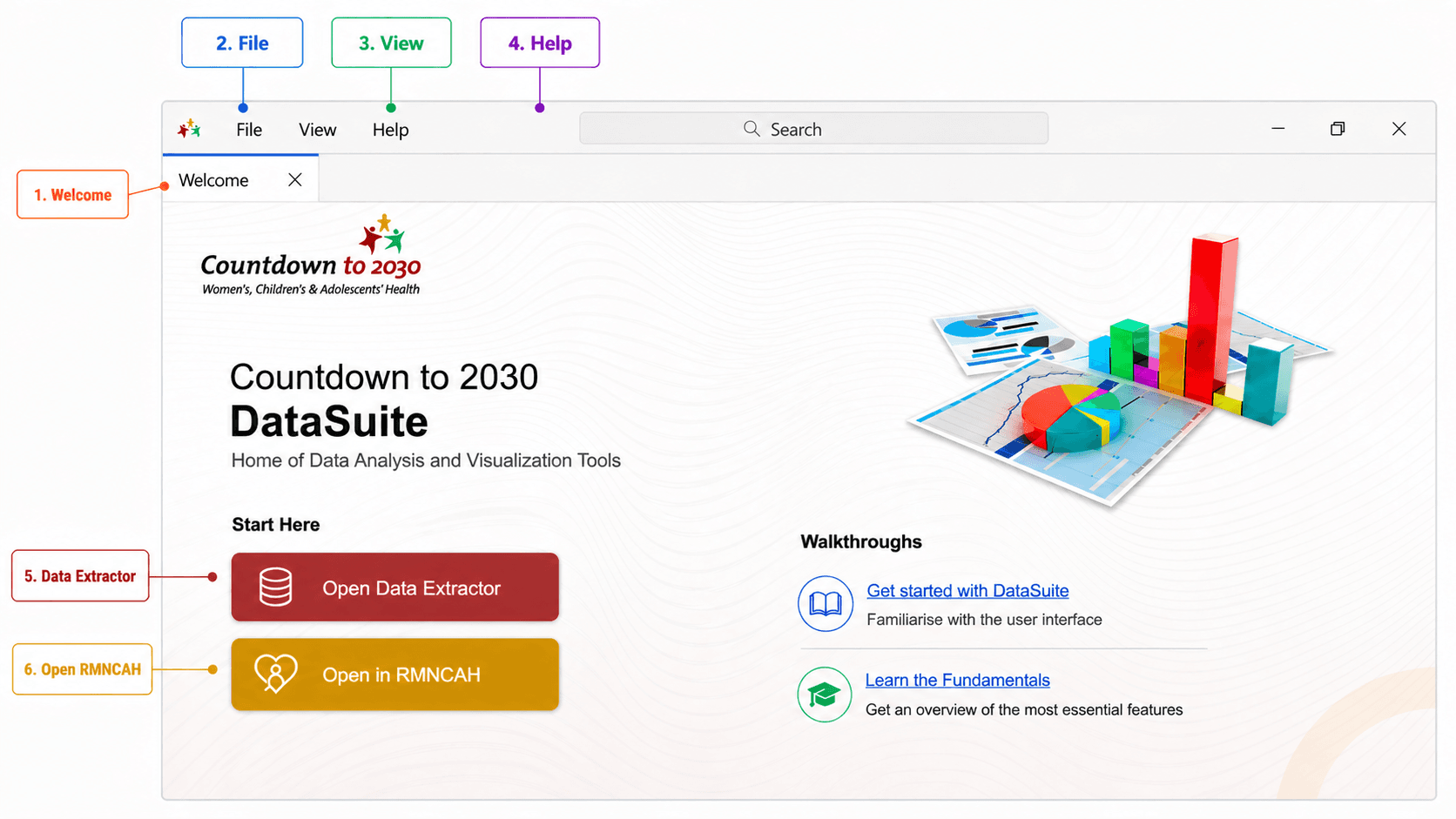
It has the following tabs:
Welcome page
This is the default landing screen when you open Datasuite. It provides:
- Quick access to core applications
- Entry points for new users and links to guided walkthroughs
📁 File
The File menu provides access to application-level actions and navigation.
Key functions include:
- Viewing all available apps within Datasuite
- Opening or switching between tools
- Managing open editors (closing tabs)
- Exiting the application
View
The View menu controls how the application is displayed and organized.
You can:
- Change the application theme (e.g., light/dark mode)
- Zoom in or out of the interface
- Adjust layout and panel organization
- Switch language settings
Help
The Help menu provides access to support resources and system information. Key features include:
- Accessing Datasuite documentation
- Checking the current app version and looking for updates
- Viewing developer/technical information
▶️ Open Data Extractor
Launches the CD2030 Data Extractor, which is used to connect to the DHIS2, map indicators and dowload routine health facility data.
▶️ Open in RMNCAH
Launches the RMNCAH App, which is used for:
- Analysis of maternal, newborn, child, and adolescent health indicators
- Generating analytical outputs and reports