Getting started
This guide takes you from opening the RMNCAH or Vaxx app in DataSuite to a dataset that is ready for analysis. The methodology behind these steps is described in Analysis setup.
Open the app
Start the app from DataSuite
RMNCAH
On the DataSuite welcome page choose Open in RMNCAH (see Navigating the DataSuite interface). The app needs a file to work on, so DataSuite asks you to pick one. Accepted types are .xls, .xlsx, .dta and .rds.
Use the Excel workbook from the Data Extractor the first time, and the saved .rds afterwards.
Check that the file was read
Open Load Data in the sidebar. When DataSuite hands the file to the app, it is read automatically and a green Upload successful banner names the file. If the page shows an Upload HFD data box instead, choose the file there.
 Loading routine data
Accepted files
| Format | Notes |
|---|---|
.xlsx, .xls | A workbook with the required sheets (see Analysis setup > HMIS data). Starts the full walkthrough. |
.dta | A single, already merged Stata file. |
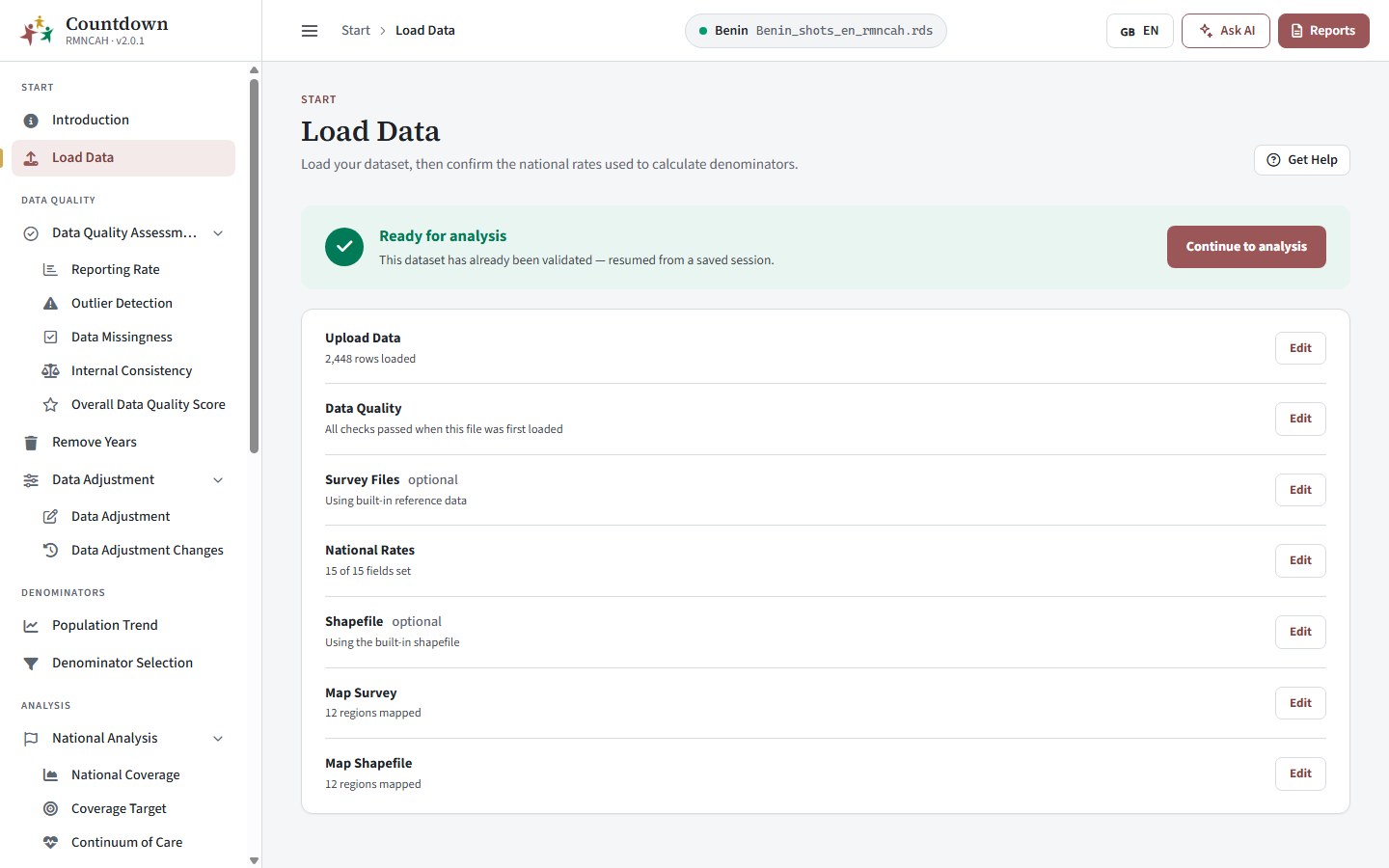
.rds | A dataset saved by this app. It is already validated, so the app opens a summary of the dataset instead of the walkthrough. |
Other extensions are refused with “Upload failed: Unsupported file format.”
When you upload an Excel or Stata file, the app looks for its saved copy and loads it instead if it exists. This is how work resumes.
RMNCAH
The saved copy is named after your file with _rmncah.rds added, in the same folder.
When you open the same Excel or Stata file again, the saved _rmncah.rds copy next to it is used instead. Delete that copy if you changed the workbook and want to load it afresh.
Two ways through Load Data
- A resumed
.rdsfile was already validated. The wizard is replaced by a Ready for analysis page with one row per step (for example 15 of 15 fields set, Using the built-in shapefile) and an Edit link that reopens any step. Continue to analysis takes you to Reporting Rate. - A new Excel or Stata file goes through the walkthrough below. The wizard has a step rail. Steps unlock in order: a step opens only after you press Continue (or Skip to) on the previous one, and a step marked required must be complete before the next one opens. Steps marked optional can be skipped.
The Load Data wizard
Upload Data
Drop or browse for your file in the Dataset card (“Browse or Drop…”). The card shows the loaded file. Download Master Dataset saves the merged dataset as a .dta file (master_dataset.dta). Clearing the file also clears everything derived from it.
The card Additional reference data (optional) lets you replace the built-in country reference sets with your own .dta files:
RMNCAH
Upload UN Estimates data, Upload WUENIC estimates and Upload UN Mortality estimates. Restore default returns to the built-in data.
Data Quality
The checks run automatically on the loaded sheets. A banner reads either All checks passed, no blocking issues found or Some checks found issues that need fixing before you can continue. The page lists blocking checks (they must pass before Continue works), informational checks (they do not block) and mapping checks (region name mismatches, fixed in the mapping steps).
What each check tests: Analysis setup > Checks on the uploaded data.
Fix blocking problems in the workbook (the source file) and load it again.
Survey Files (optional)
Upload up to five .dta files in the Survey data folder card, one at a time: National data, Regional data, Area data, Maternal education data and Wealth index quintile data. What they are used for, and what happens without them: Analysis setup > Survey files and shapefile. A file that cannot be read shows Upload failed with the reason.
National Rates
Enter or confirm the survey values used to derive denominators. Every field is required and Continue stays disabled while Required fields remaining is shown.
- Survey reference: Recent Survey Year and Survey Data Start Year.
RMNCAH
- Maternal and newborn: ANC1, ANC4, Institutional Delivery, C-Section and Low Birth Weight coverage, and Pregnancy Loss, Twin Births, Stillbirth, Neonatal Mortality and Post-Neonatal Mortality.
- Immunization: BCG, Penta1, Penta3 and Measles 1 coverage.
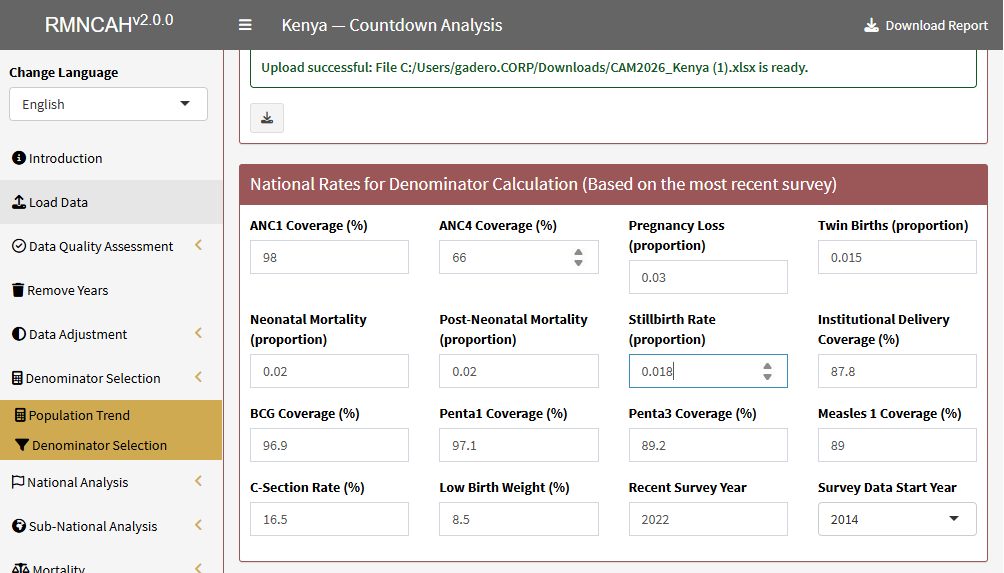 National rates for denominator calculation
If you uploaded a national survey file, the values are pre-filled and a banner says so. Check them. What each value means, its unit and allowed range (percentages or proportions), and how to choose the survey years: Analysis setup > National parameters.
Shapefile (optional)
The app uses a built-in (standard) shapefile for the country by default (Analysis setup > Survey files and shapefile). To use your own, upload the .shp, .dbf, .shx and .prj files, pick the column that holds the region (admin-1) names and press Use this shapefile.
Map Survey and Map Shapefile
When you uploaded survey files or a custom shapefile and their region names differ from your dataset, match them to those in your dataset. Names are matched automatically where possible. Press Match Region Names, correct the matches and save. Save (review) at least once, even if nothing needed changing. Clear mapping starts again.
Finish Loading Data
On the last step press Finish Loading Data. The app merges the sheets, saves the dataset (see Accepted files for the name and place of the saved copy) and shows Ready for analysis, with a summary (rows loaded, checks passed, fields set, files uploaded, regions mapped). Choose Continue to analysis. Use Edit on the summary to return to any step.
Troubleshooting
| Message or symptom | Cause and fix |
|---|---|
| Upload failed: Unsupported file format. | The file is not .xls, .xlsx, .dta or .rds. Convert it or export again. |
| Upload failed: The file provided does not exist | The selected path is missing or was moved. Select the file again. |
| Upload failed followed by a detail | The workbook could not be read, for example a required sheet or column is absent. Compare it with the sheet list under Data Quality. |
| Upload failed: missing sheet(s) | The workbook lacks a required sheet. The missing names are listed. |
| Key Columns … missing in … | A sheet lacks a key column, for example the country or first admin level column of Admin_data. |
| Sheet … is empty. | A required sheet has no rows. |
| Country contains multiple names. Please clean the data | The Admin sheet names more than one country. |
| The country in the document is not supported | The country name could not be matched. A “Did you mean” suggestion is shown, so correct the spelling. |
| This dataset was built for the ‘vaccine’ indicator group, but this app is for ‘rmncah’. | In the RMNCAH App: a saved dataset from another Countdown app (Vaxx) was opened. Use the matching app or load the workbook. |
| This dataset was built for the ‘rmncah’ indicator group, but this app is for ‘vaccine’. | In the Vaxx App: you loaded a dataset saved by the RMNCAH App. Use that app, or start again from the original data. |
| Some checks found issues that need fixing (before you can continue) | A blocking Data Quality check failed. Read the red row, correct the workbook (source file), load it again. |
| Missing required files, or File does not match any known pattern | A survey file is missing or not recognized. |
| Complete the earlier steps first | You tried to jump ahead. Finish or skip the current step. |
| Some survey region names do not match your dataset | Use Match Region Names in the mapping step. |
| Review needed | Region name matches must be reviewed and saved before you continue. |
| Load and finish a dataset first to unlock this page | Analysis pages stay locked until loading is finished. |
After loading, continue with Data quality. For how the workbook is produced, see the Data Extractor and the analysis setup chapter.