Analysis setup
This page describes the steps required to set up the analysis workbench. It sets out the data and national parameters the analysis needs, and how to load them in the apps.
At a glance
- Answers: What data, reference datasets and national parameters does the analysis need, and how are they loaded?
- Uses: the Excel workbook generated from HMIS/DHIS2 exports (see the DHIS2 data indicator definitions), the embedded reference datasets and the national survey parameters.
- Produces: a working folder with the companion
.rdsfile, the reference datasets matched to the country, and the national parameters used for denominator selection; the next step is data quality assessment. - In the apps: Getting started (the Load Data wizard).
Method
HMIS data
The app accepts common tabular data formats for the DHIS2 upload:
- Excel workbook:
.xlsxor.xls - Stata dataset:
.dta - A dataset already saved by the app:
.rds
The Excel workbook, in the format produced by the Data Extractor, must contain an Admin_data sheet, a Population_data sheet, a Reporting_completeness sheet and at least one Service_data sheet.
See the DHIS2 data indicator definitions.
Checks on the uploaded data
When the data is loaded, it is checked before the analysis can go on. There are three kinds of check.
- Blocking checks must pass before the analysis can continue:
- Admin, Population and Service sheets found;
- country, admin-1 and district columns present in the Admin sheet;
- exactly one country in the Admin sheet, recognised by name;
- districts match between the Admin sheet and every other sheet;
- district names consistent across years;
- no missing months (every district-year has all 12);
- every month name recognised (English or French).
- Informational checks do not block:
- estimated live births not lower than facility (reported institutional) live births (10% margin);
- population data not pasted into service data;
- every indicator has some data;
- month names labelled consistently across sheets.
- Mapping checks: two checks report survey or shapefile region names that do not match the dataset. The names are matched to the dataset’s own region names before the analysis (see Survey files and shapefile).
Survey files and shapefile
Survey data files (.dta) are optional. There are five: national, regional, area, maternal education and wealth index quintile data. They power equity analysis (the Equity Assessment), survey comparison lines and sub-national comparisons. Without them the app keeps its built-in reference data.
A shapefile is used for maps. A standard shapefile for the country is built in; a custom one can be used instead.
When survey files or a custom shapefile name their regions differently from the dataset, their region (admin-1) names must be matched to those in the dataset.
Embedded datasets
In addition to the uploaded DHIS2 dataset, the app includes internal reference datasets that are linked to the country whose data was uploaded.
These embedded datasets are:
- UN estimates
- Survey data
- WUENIC estimates
- UN mortality data
- Family Planning Estimation Tool (FPET) data
Because these datasets are named according to the country whose DHIS2 data is loaded, the app can automatically match the uploaded file to the correct reference set.
Best practice
- Use one working folder per country or DHIS2 export batch.
- Keep the original Excel source file and the generated
.rdsfile together. - Do not rename the
.rdsfile manually; the app manages that file automatically.
National parameters for denominator calculation
- These parameters are used to support selection of denominators for service coverage analysis within the RMNCAH analytical framework.
- They are typically derived from the most recent national survey (e.g., DHS, MICS) and are applied uniformly across subnational units.
Tip
The default values are extracted from the available country survey data. Users can update these values if they have more recent, validated values.
Every parameter is required. Coverage values are percentages (0 to 100). Pregnancy loss, twin births, stillbirth, neonatal mortality and post-neonatal mortality are proportions (0 to 0.05; for example 0.03 means 3%). The recent survey year lies between 2015 and 2030.
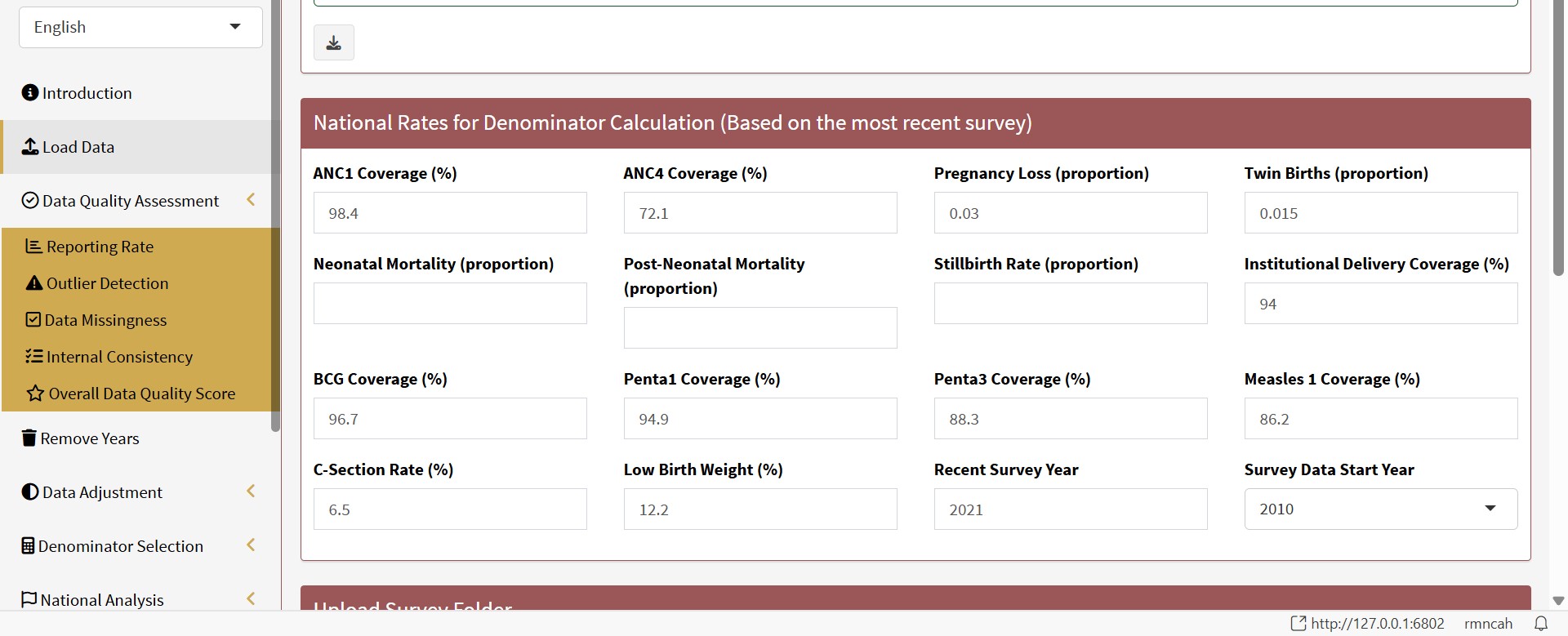 Analysis parameters
| Parameter | Definition |
|---|---|
| ANC1 Survey (%) | Percentage of women aged 15–49 with a live birth who received at least one antenatal care (ANC) visit during their last pregnancy. (Example: If 940 out of 1,000 women had at least one ANC visit, the ANC1 coverage is 94%.) |
| ANC4 | Percentage of women aged 15–49 with a live birth who received four or more antenatal care visits during their last pregnancy. (Example: If 680 out of 1,000 women had ≥4 ANC visits, ANC4 coverage is 68%.) |
| Pregnancy Loss (proportion) | Proportion of pregnancies that ended in miscarriage, abortion, or stillbirth out of all reported pregnancy outcomes. (Example: If 80 of 1,000 pregnancies ended in loss, the proportion is 0.08) |
| Twin Births (proportion) | Proportion of live births that are twins out of all live births. (Example: If 30 out of 1,500 live births were twins (i.e., 15 twin pairs), the proportion is 0.02) |
| Neonatal Mortality (proportion) | Proportion of live births that die within the first 28 days of life out of all live births. (Example: If 20 out of 1,000 live births died within the first 28 days, the proportion is 0.02) |
| Post Neonatal Mortality (proportion) | Proportion of live births that die between 28 days and 11 months of life out of all live births. (Example: If 15 out of 1,000 live births died between 28 days and 11 months, the proportion is 0.015) |
| Stillbirth Rate (proportion) | Proportion of pregnancies that ended in stillbirth out of all reported pregnancy outcomes. (Example: If 10 out of 1,000 pregnancies ended in stillbirth, the proportion is 0.01) |
| Institutional delivery | Percentage of live births that occurred in a health facility. (Example: If 850 out of 1,000 live births were in a health facility, the institutional delivery coverage is 85%.) |
| BCG Coverage (%) | Percentage of infants aged 12–23 months who received the Bacillus Calmette-Guérin (BCG) vaccine. (Example: If 950 out of 1,000 infants received the BCG vaccine, the BCG coverage is 95%.) |
| Penta1 Coverage (%) | Percentage of infants aged 12–23 months who received the first dose of pentavalent vaccine. (Example: If 920 out of 1,000 infants received the first dose, the Penta 1 coverage is 92%.) |
| Penta 3 | Percentage of infants aged 12–23 months who received the third dose of pentavalent vaccine. (Example: If 850 out of 1,000 infants received the third dose, the Penta 3 coverage is 85%.) |
| Measles 1 Coverage (%) | Percentage of infants aged 12–23 months who received the first dose of measles vaccine. (Example: If 900 out of 1,000 infants received the first dose, the Measles1 coverage is 90%.) |
| C-Section Rate (%) | Percentage of live births that were delivered by cesarean section. (Example: If 150 out of 1,000 live births were by C-section, the C-section coverage is 15%.) |
| Low birth weight | Percentage of live births that were low birth weight (less than 2,500 grams). (Example: If 100 out of 1,000 live births were low birth weight, the low birth weight coverage is 10%.) |
| Recent survey Year | The calendar year in which the survey was conducted and from which vaccine coverage estimates (e.g., BCG, Penta1/3, Measles1) are drawn. (Example: If the survey was conducted in 2022, that is the vaccine survey year). |
| Survey Data Start Year | The calendar year from which the survey data starts. This is used to determine the time period for which the survey data is relevant. Ideally, it is recommended to use the two most recent surveys for this analysis. (Example: If a country has survey data for 2008, 2013, 2018 and 2023; the Survey data start should be 2018 (two most recent)). |
RMNCAH and vaccine analyses differ here: ANC4, C-section rate and low birth weight are asked for in RMNCAH analyses only; vaccine analyses ask instead for the OPV1 and OPV3 survey coverage. See RMNCAH and vaccine analyses.
In the apps
Setup is done in the app’s Load Data wizard; Getting started describes it screen by screen, including the national parameter fields.
Create a working folder
The first step in the analysis workflow is to prepare a dedicated working folder. This folder is where you keep the input files for the app, and where the system creates the derived data file used for faster future loads.
- Choose a clear directory name that you can easily remember and reference, preferably in your local environment.
- Place the raw upload (Excel) files in that folder before starting the app.
- Keep any related documentation, data or country-specific files together so the working folder is self-contained.
Uploading HMIS data
For the initial upload, use the Excel workbook generated from HMIS/DHIS2 exports. For subsequent uploads, use the cached .RDS file, which is automatically generated and stored in the working folder when the Excel file is uploaded.
Automatic RDS creation
- When you load an Excel file for the first time, the app automatically converts and saves a companion
.rdsfile in the same working folder. - On subsequent loads, the app checks for the existing
.rdsfile and uses it to speed up data reloads.
This means the first load may take slightly longer while the Excel file is read and transformed. After that, the app opens the saved .rds file much faster.
See also
- Getting started: the Load Data wizard in the app
- DHIS2 data indicator definitions
- Formulas: denominators, where the national parameters are used
- Glossary
- Previous: Framework overview: end-to-end workflow · Next: Data quality assessment