Data preparation
Data preparation turns the reported numbers into an analysis-ready dataset, the dataset used for coverage. It has three pages: Remove Years, Data Adjustment and Data Adjustment Changes (in the RMNCAH app they are in the Data quality section). The method, formulas and business rules are in Data adjustment.
Adjusting the data is required. Running the adjustment is what unlocks the later pages: in the RMNCAH app the Denominators and Analysis pages; in the Vaxx app denominators, coverage, inequality, targets and Reports stay unavailable until you run Adjust Data at least once.
Remove Years
Purpose. Leave out years whose data cannot be relied on.
When to use it. When to remove a year, and when to keep it: Data adjustment > Remove years.
Open Remove Years
In the RMNCAH app it is under Data quality in the sidebar. Decide from the data quality pages first.
Select Years to Remove
In Select Years to Remove, the chips list the years present in the data. Select one or more.
Press Confirm Removal
The message changes from No years have been removed yet to Data for the following years has been removed, followed by the years. To bring a year back (restore years), deselect it or clear the selection and confirm again.
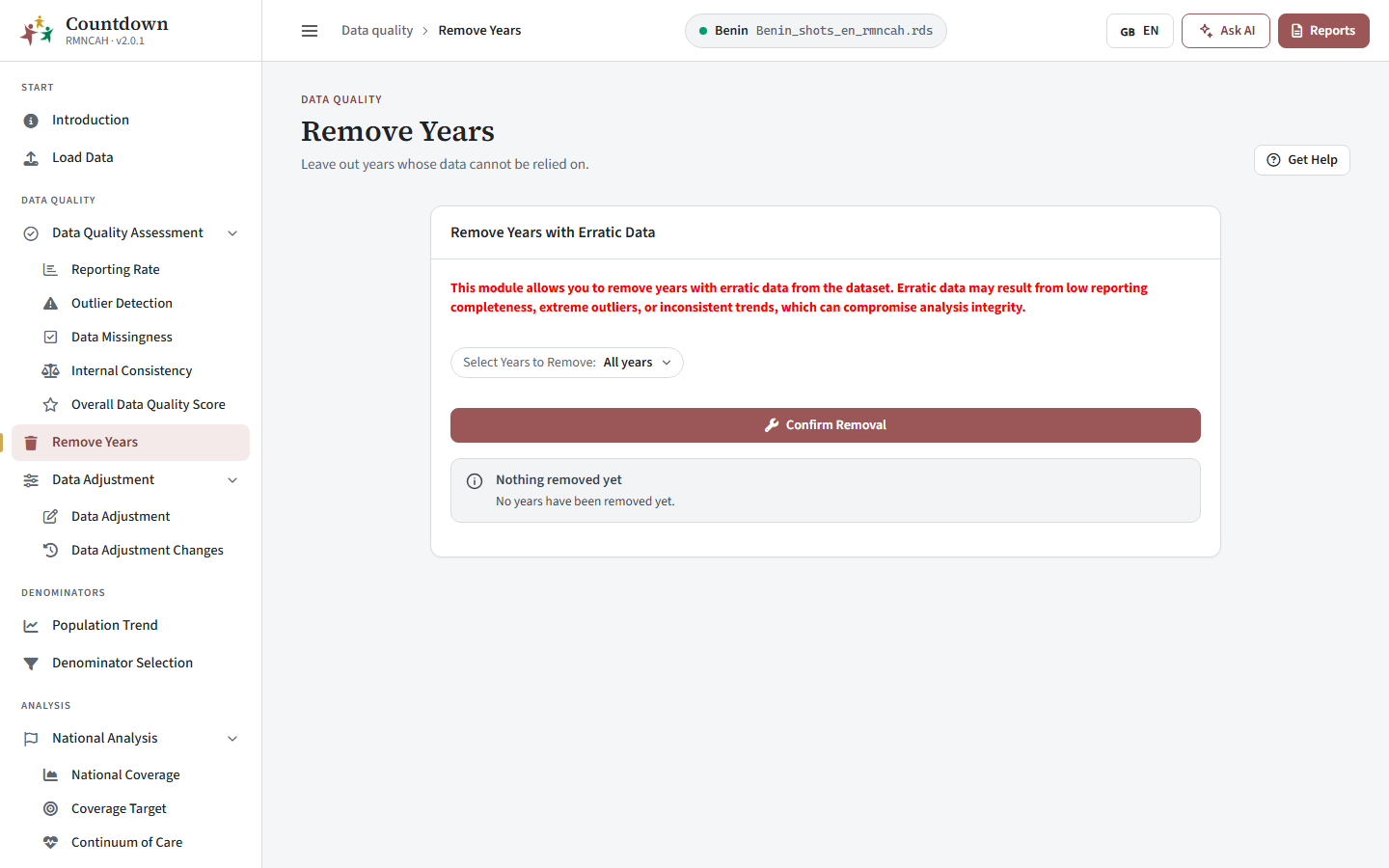 Remove years
Removal happens before adjustment. If you have already adjusted, run Adjust Data again after changing the removed years.
Data Adjustment
Purpose. Correct for incomplete reporting (missing reports) and extreme outliers. How missing values, outliers and the K-factor are handled: Data adjustment > Method.
The page has two cards: K-Factors (Adjustment Factors) and the adjustment card with Adjust Data, which applies the corrections to the current dataset.
Choose the K-Factors
RMNCAH
The card K-Factors (Adjustment Factors) has four selectors: ANC K-Factor, Delivery K-Factor, Vaccines K-Factor and OPD K-Factor. Each offers 0, 0.25, 0.5, 0.75 and 1. What each value assumes and how to choose: Data adjustment > Configuring the k-factor.
Press Adjust Data
RMNCAH
The message goes from Dataset not adjusted to Adjusting … and then Data Adjusted. Do this even if you keep every factor at 0, because it is what unlocks the analysis pages.
Download the result if you need it
Once adjusted, Download Adjusted Dataset saves the adjusted master dataset as a .dta file (master_adj_dataset.dta).
Review the changes
Open Data Adjustment Changes.
Changing the K-factors or the removed years discards the adjusted dataset. Press Adjust Data again, otherwise the analysis pages will not reflect your change. If the adjustment fails, the message shows the reason.
How a district-month with reporting below 75% (or missing) is handled: Data adjustment > Critical data threshold rules.
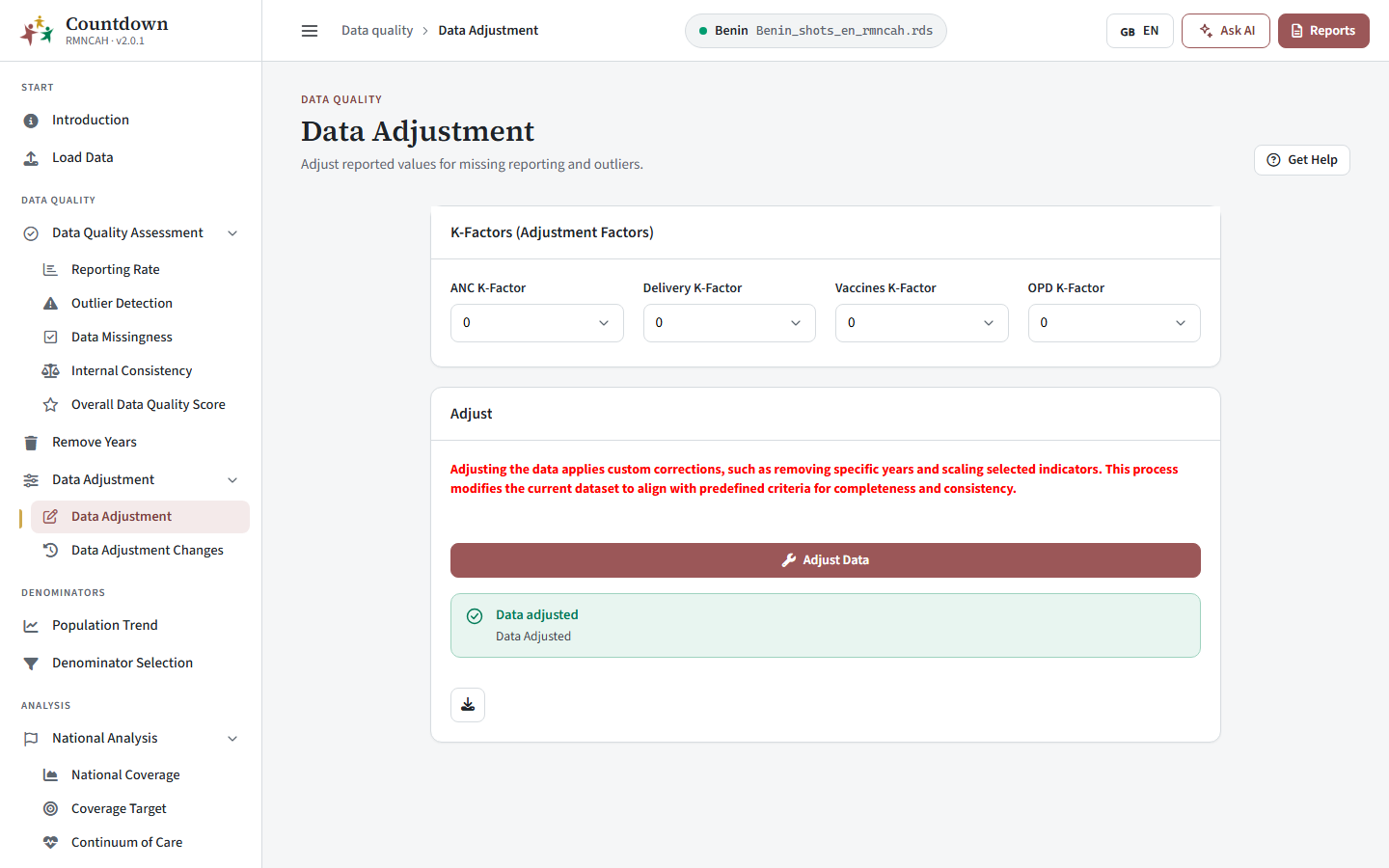 K-factor selection
Data Adjustment Changes
Purpose. See what the adjustment did to each indicator.
How to read it. The card Visualize effects of changes has one tab per indicator. Each chart compares the number of events (of the indicator) before and after adjustment for completeness and outliers, by year.
RMNCAH
Tabs are Institutional Deliveries, Institutional Live Births, Pentavalent 1, ANC 1 and OPD Under 5 Years, plus a Custom tab for any other indicator. Use Download Plot and Download Data on the toolbar. Generate Report opens the adjustment report.
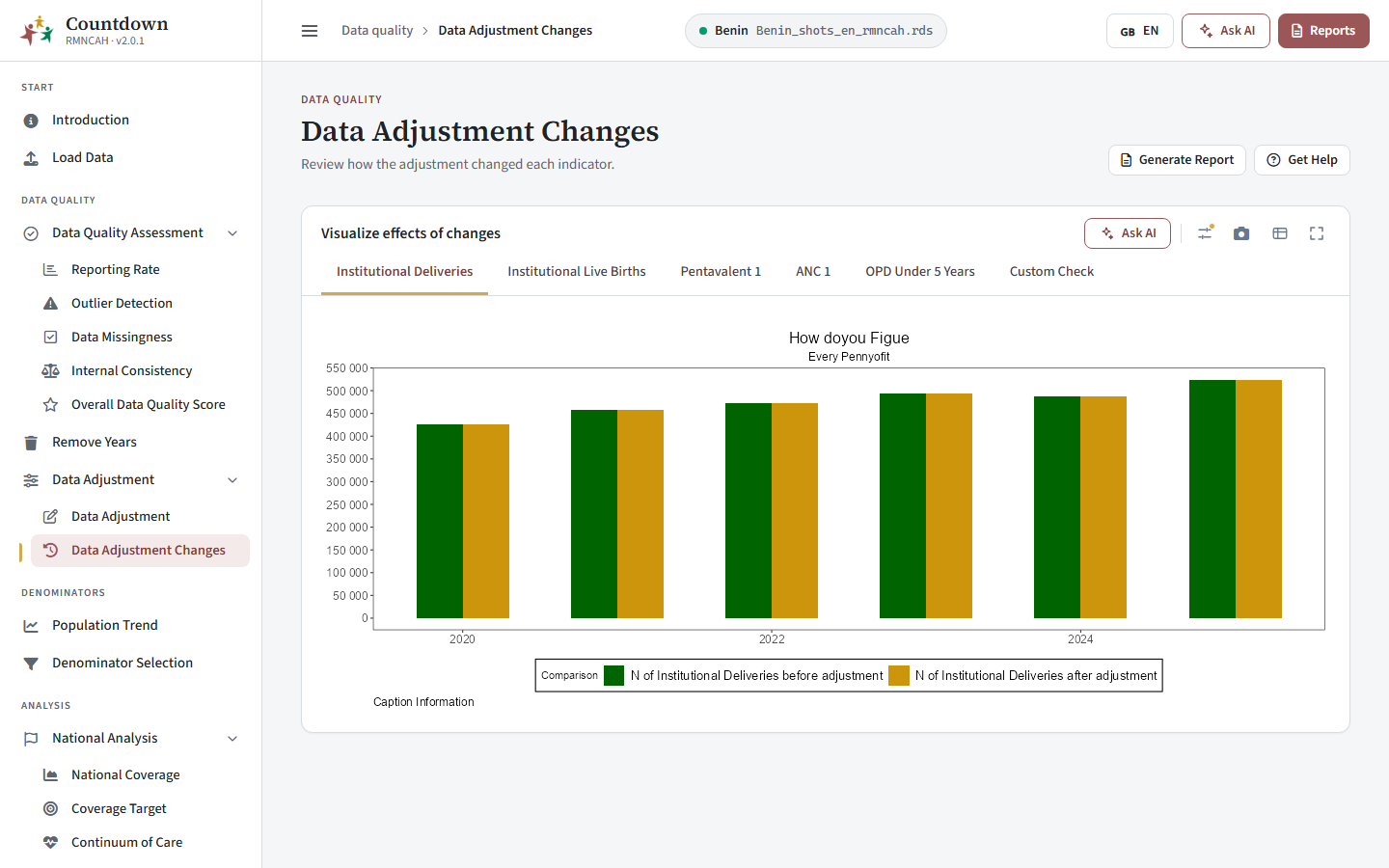 Before and after adjustment
How to interpret the results
How to read the before-and-after charts: Data adjustment > Adjustment outputs. What to report: Data adjustment > Report.
Common pitfalls
- Changing K-factors, removed years or the performance threshold affects every downstream page. Re-run Adjust Data and re-check denominators afterwards.
- Reports and pooled caches should be built from adjusted data. See Pooled App.
Pitfalls in choosing the K-factors and removing years, and which indicators are not adjusted: Data adjustment > Common pitfalls.
Next: Denominators.